GT-1 Control Panel — Quick Start
Prerequisites
- Hardware: BOSS GT-1 Guitar Multi Effects Processor
- Software: Any Digital Audio Workstation (DAW) supporting VST3 plugins
- Instrument: A guitar is recommended
Installation
- Install the GT-1 Control Panel plugin by running the installer.
-
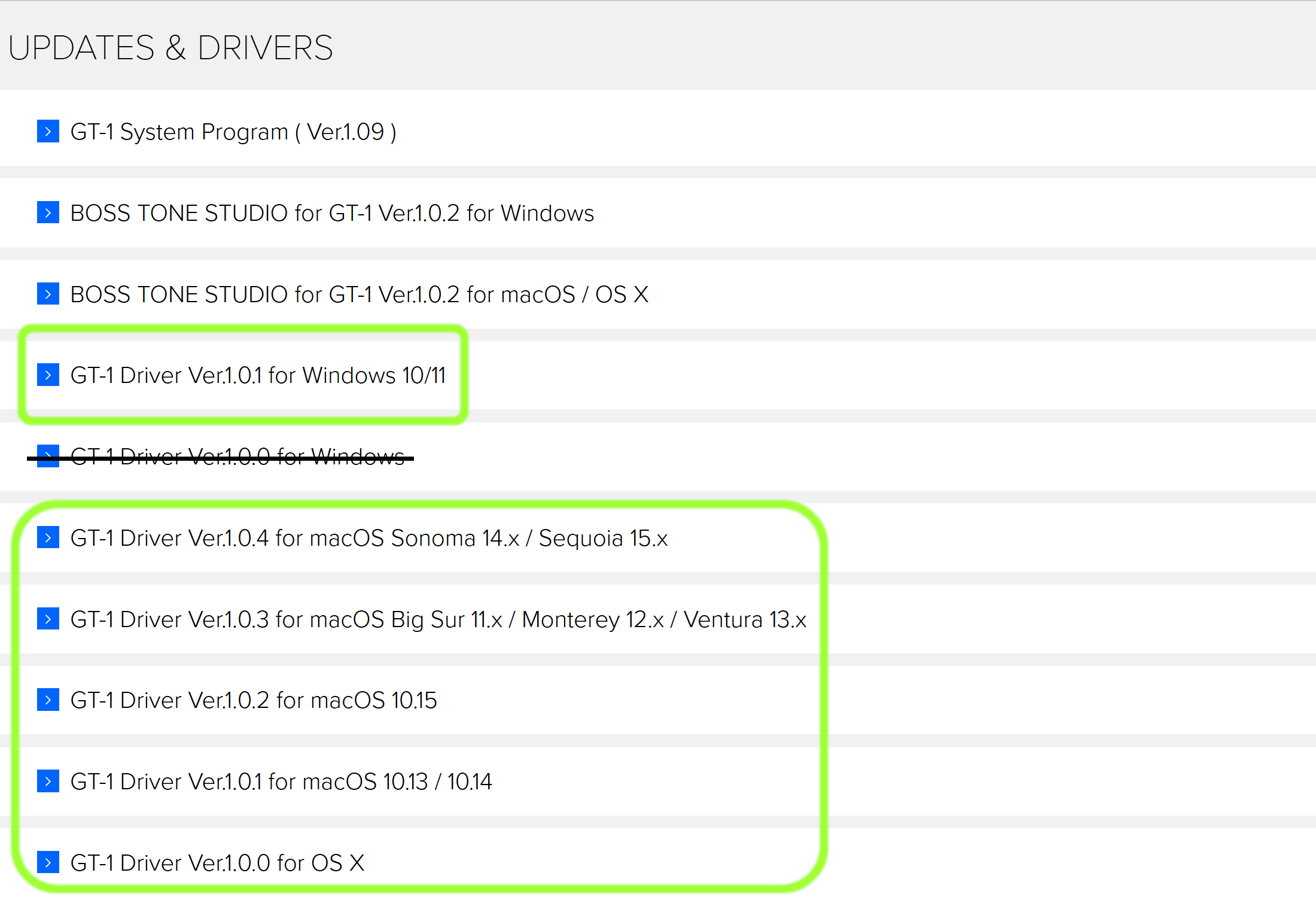
Install the following from the official BOSS GT-1 product page:
- GT-1 System Program
- BOSS Tone Studio for GT-1
- GT-1 Driver (required)
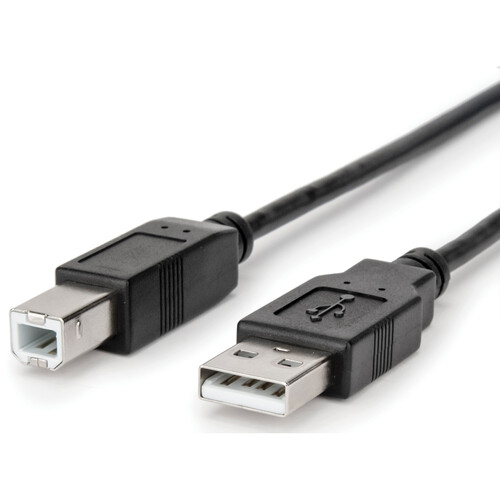
- Connect the GT-1 to your computer using a USB 2.0 A-to-B cable. Plug a ¼″ audio jack into the GT-1 input to power it on.
- Verify the GT-1 appears in the Windows Device Manager under Sound, video and game controllers. Confirm that the GT-1 successfully connects to BOSS Tone Studio.
FL Studio Setup
- Press F10 to open FL Studio Settings. Under the MIDI tab, locate the GT-1 under MIDI output devices and assign it a port number (for example, port 8).
- Add the GT-1 Control Panel plugin to your project.
- Open the plugin settings and set the MIDI output port to match the port number chosen in the previous step.
- Return to the plugin interface. Turning knobs should immediately update the corresponding settings on the GT-1. Hover over controls to view tooltips if needed.
-
Right-click any control to open the context menu.
Two options are especially useful:
- Edit Events — Automates the control within a pattern
- Add Automation Clip — Automates the control over the course of a song
- Edit events or automation clips and verify real-time effect changes during playback.